


Zoom Workplace for Chromebook
3.91.66K Reviews
App Specs
- Version
- 6.5.5
- Updated On
- License
- Free
- Downloads
- 5,000,000+
- Developer
- zoom.com
- Categories
- Business
- Platform
- Android
Screenshots


 Analysis by AppCompare
I find Zoom Workplace on a Chromebook most useful when my day moves between a scheduled meeting, a quick message and a document handoff. It is a business app from zoom.com, and its appeal is less about replacing every tool a team already uses than about keeping several common work tasks within reach. The app is free, rated for Everyone, and its current version is 6.5.5; those details make it easy to try, though the real question is whether its mix of tools suits the way you work.
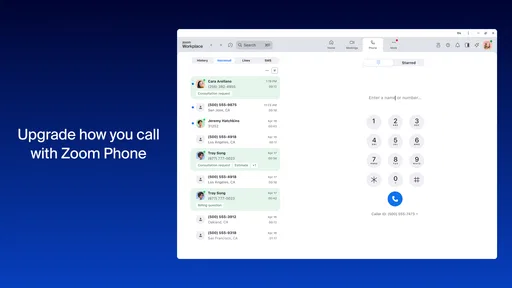
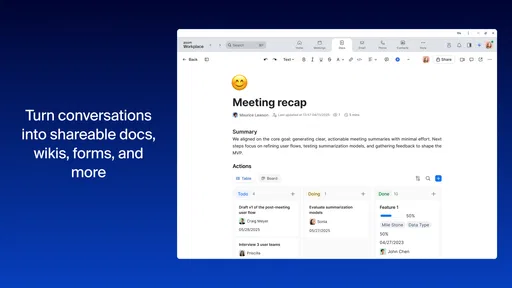
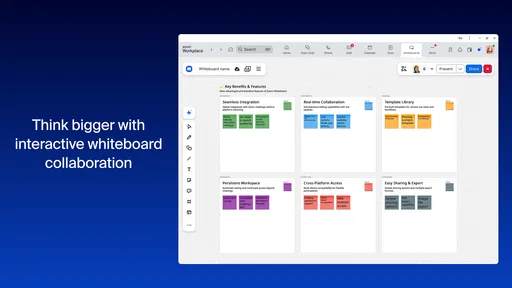
For a student joining a class, a small team coordinating remotely or a freelancer speaking with clients, the familiar meeting workflow is the obvious draw. The wider Workplace setup also points toward chat, phone and documents, so I would look at it as a work hub rather than only a button to start a video call. That distinction matters: if you only need occasional calls, a simpler meeting app may be enough; if conversations and follow-up are part of the same workday, having them close together can save small but repeated bits of effort.
What the Chromebook experience is best suited to
A practical use case is a Chromebook user who attends a lesson or team check-in, shares a presentation, then needs to follow up with colleagues without switching immediately to a separate desktop setup. The value is not that every task becomes effortless, but that the meeting remains connected to the conversation around it. I would still keep important notes somewhere I can find them later rather than relying on memory or a busy chat thread.
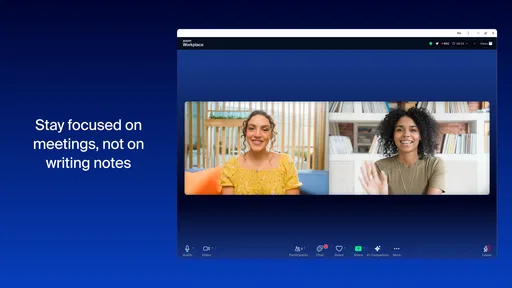
Before a call, I’d check the Chromebook’s microphone and camera, close unneeded tabs, and make sure the device is on a stable network. That is ordinary preparation, but it has an outsized effect on a web-oriented laptop where browser tabs and a video call may compete for attention. If the meeting is important, joining a little early gives me time to choose the right audio source and confirm that screen sharing will show the intended window, not a cluttered desktop.
Small workflow choices that make a difference
For presentations, sharing a single window is usually a better choice than exposing the whole screen. It keeps private notifications and unrelated tabs out of view, and it gives the audience a clearer focus. I also find it helpful to open the file before joining, then test that I can move between the meeting and the material without losing the thread. These are simple habits, but they prevent the awkward pause that can make a polished presentation feel improvised.
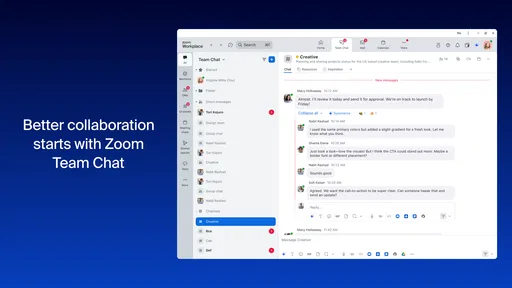
Chat is useful for links, short questions and details people may need to copy accurately. I would not treat it as a substitute for a proper project record, especially when a decision needs to be traceable later. A sensible routine is to put the immediate pointer in chat, then move lasting decisions into the team’s agreed notes or documents. That keeps the meeting lively without turning its message stream into the only archive anyone trusts.
How it compares with other meeting choices
Compared with a single-purpose video-calling app, Zoom Workplace can make more sense when the same group also needs work conversations and related tools. The trade-off is complexity: a person who wants only a quick call may prefer an app with fewer areas to explore. On a Chromebook, the best choice also depends on what the people you meet already use. If classes, clients or coworkers routinely send Zoom invitations, familiarity can outweigh the appeal of switching to a theoretically simpler alternative.
Worth Reading Before You Choose

Flipboard Shows What News Apps Must Do Beyond the Feed

Switching to Android Auto Means Rethinking Your Driving Routine

Google Calendar Makes a Crowded Week Easier to Manage

Ludo King Makes the Most of the Minutes Between Plans

Baby Panda World Brings Quick Play to Modern Phones, but Its Game Library Feels Busy

ESPN’s Live Game View Makes Following Close Games Easier
It is also worth separating the Chromebook experience from assumptions based on another device. A familiar account and interface can ease the move between platforms, but keyboard shortcuts, window management and the feel of screen sharing may differ with the laptop in front of you. I would test the exact workflow I depend on—especially presenting, switching windows and using chat—before making it the default for a high-stakes event.
Who may want a different setup
I would recommend trying it if video meetings are a regular part of your school or work routine and you want one place to reach several collaboration tools. It is less compelling for someone who rarely joins calls, prefers a minimal app, or already has a well-established team workflow elsewhere. A dedicated document editor may be better for intensive writing, while a lightweight calling option may be more comfortable for informal one-to-one chats.
Chromebooks also vary in screen size, memory and input options, so there is no single experience that fits every model. A smaller display can make a meeting, chat and shared material feel crowded, and a long call is not automatically comfortable just because the laptop is portable. For extended sessions, a headset and a place to plug in can be more valuable than another feature. I would judge it by the Chromebook I actually use, not by an assumption that all devices behave alike.
Getting Started with Zoom on Chromebook
First things first, installing Zoom Workplace for Chromebook is a breeze. Head over to the Chrome Web Store, search for Zoom, and with a couple of clicks, you’re ready to go. The installation process is as seamless as it gets, and within minutes, you’ll be staring at the familiar interface that so many of us have come to know and love.
Once you're set up, logging in is straightforward. You can use your existing Zoom credentials or sign up directly through the app. I appreciate how the developers made sure the app maintains the same look and feel as its counterparts on other platforms. This makes transitioning between devices a piece of cake.
User Interface: Clean and Intuitive
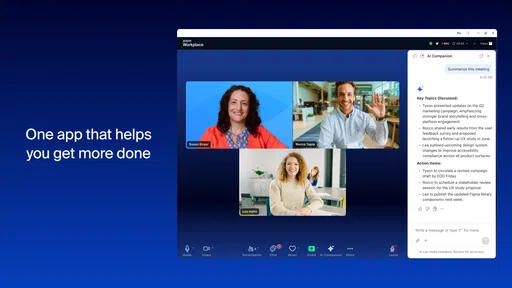
The user interface on the Chromebook version is clean, intuitive, and designed to minimize distractions. You’ll find all the typical Zoom features right where you expect them. The sidebar gives you access to your meetings, chat, and contacts, making it easy to navigate. The video quality is surprisingly good, even on a basic Chromebook, which speaks volumes about the app's optimization.
One thing that stands out is the ease of scheduling meetings. Just a few clicks, and you can set up a meeting, invite participants, and even add it to your Google Calendar. This integration with Google services is a huge plus for Chromebook users.
Features That Stand Out
With so many video conferencing tools out there, what makes Zoom Workplace special? For starters, you have all the classic Zoom features: screen sharing, breakout rooms, and real-time chat. But on the Chromebook, it feels even more accessible and efficient.
Screen sharing is smoother than I expected. You can share your entire screen or just a specific window, which is perfect for presentations. The breakout rooms are also a fantastic feature for educators or team leaders who need to divide participants into smaller groups for discussions.
Real-time chat is quick and responsive. You can send files, emojis, and even react with emojis during a meeting. These little touches make virtual meetings feel a bit more human and engaging.
Performance and Reliability
Performance-wise, the app is a solid performer on a Chromebook. Even with multiple participants, I didn’t experience any significant lag or connectivity issues. The audio is crisp, and the video quality holds up well, even when there’s a lot going on in the background.
One thing I noticed was the app's low impact on battery life. Chromebooks are known for their long battery life, and Zoom Workplace doesn’t seem to compromise that. You can easily get through a few meetings without worrying about your device dying on you.
Privacy and Security
In today’s digital age, privacy and security are paramount. Zoom has made significant strides in ensuring user data is protected. The Chromebook version benefits from these improvements, offering end-to-end encryption and robust security settings. You can lock meetings, enable waiting rooms, and require passwords for added protection.
For those concerned about privacy, Zoom Workplace offers the necessary tools to keep your meetings secure and your data safe. It’s comforting to know that the app takes these considerations seriously, especially for users handling sensitive information.
The Verdict
So, is Zoom Workplace for Chromebook worth it? In my opinion, absolutely. It combines the best features of Zoom with the simplicity and efficiency of a Chromebook. Whether you're a student, a teacher, or a business professional, this app has something to offer.
From its user-friendly interface to its reliable performance, Zoom Workplace is a strong contender in the video conferencing space. It’s not just an app; it’s a tool that makes remote work and learning more manageable and, dare I say, enjoyable.
In a world where virtual meetings are the norm, having a reliable app like Zoom Workplace on your Chromebook is a game-changer. Give it a try, and you might just find it becomes an indispensable part of your daily routine.
What its current version tells me—and what it does not
Zoom Workplace was released on June 25, 2021, and version 6.5.5 is the current release. That gives the Chromebook user a concrete point of reference, but a version number alone does not tell me which individual changes arrived in each update. I would not assume a particular new feature based only on the number. The more useful way to judge the app is to check whether the current build works smoothly with your device and the workflows you rely on.
The app has an average rating of 3.8 from around 10,000 ratings, with roughly 1,700 written reviews, and it has passed 5 million installs. Those figures suggest plenty of people have tried it, while the less-than-perfect average is a reminder that experiences vary. On Chromebook, device differences, network quality and the kinds of meetings people attend can all shape how satisfying it feels. I’d treat the rating as context, not as a promise about my own calls.
Questions I would settle before relying on it
Can I use it without paying? Yes, the app is free to install. Whether a particular workplace feature or meeting arrangement suits your needs is a separate question, so I would check the options available in the account and organization I plan to use rather than assume every workflow is identical.
Is it suitable for a child or student? Its Everyone age rating makes it broadly suitable from a content-rating perspective, and the app can be useful for classes or study groups. For a school setting, though, the teacher or institution should set expectations around meeting access, chat and sharing. A rating does not replace classroom rules or adult guidance.
Does it replace every other work app? I would not expect it to. The convenience comes from bringing meeting-related activity closer together, not from making a dedicated tool unnecessary in every situation. If your team already has a clear system for documents, scheduling and project decisions, keeping that system may be wiser than moving everything just to consolidate apps.
Can I count on it for a presentation or important interview? I would, after a short rehearsal on the same Chromebook and network. Confirm the camera and microphone, open the material in advance, and practice sharing the window you intend to show. That quick check answers the questions that matter more than a general claim about compatibility: whether your setup handles the actual call you are about to make.
What I would keep an eye on
For an existing user, the practical test after an update is not simply whether the app opens. I would check the meeting controls, audio selection, screen-sharing flow and the way chat fits beside a call, since those are the points where a small interface change can affect a familiar routine. If a team depends on a particular process, one person can test it first and share the result before everyone changes their habits.
My overall view is that Zoom Workplace is most persuasive when a Chromebook is your everyday work or study device and video calls are only one part of your collaboration. Its range can be an advantage, but it also asks you to tolerate more than a bare-bones calling app. Try it with a real, low-stakes meeting, then decide whether the combination of meetings, chat and related work tools genuinely reduces friction. If it does, it earns a place in your routine; if not, choosing a simpler or more specialized option is a sensible decision.
Pros
- Seamless integration with Google Workspace.
- Optimized for Chromebook performance.
- User-friendly interface and navigation.
- Supports HD video and audio quality.
- Regular updates and security patches.
Cons
- Limited features compared to desktop version.
- Occasional connectivity issues reported.
- Higher data usage on video calls.
- Some functions require third-party apps.
- No offline mode for meetings.
FAQs for Zoom Workplace for Chromebook
What are the system requirements for running Zoom Workplace on a Chromebook?
To run Zoom Workplace on a Chromebook, ensure your device is updated to the latest version of Chrome OS. While Zoom is optimized for Chromebooks, having at least 4GB of RAM is recommended for a smooth experience. Additionally, a stable internet connection is essential for clear audio and video communication.
Is Zoom Workplace for Chromebook free to use, or are there costs involved?
Zoom Workplace offers a free version with basic features, such as hosting meetings and webinars. However, for advanced functionalities like extended meeting durations, larger participant capacity, and administrative controls, a subscription to one of their paid plans is required. Prices vary depending on the plan and features selected.
How does Zoom Workplace handle data privacy on Chromebooks?
Zoom Workplace is committed to protecting user data, implementing robust encryption protocols and security features. On Chromebooks, Zoom adheres to Google’s security standards and provides options for meeting encryption, password protection, and user authentication to ensure that your communications remain private and secure.
Can I integrate Zoom Workplace with other apps on my Chromebook?
Yes, Zoom Workplace can be integrated with various productivity tools and apps on your Chromebook. Popular integrations include Google Calendar, Google Drive, and Slack, among others. These integrations enhance collaboration by allowing seamless scheduling, file sharing, and communication without leaving the Zoom interface.
What troubleshooting steps can I take if Zoom Workplace isn’t working on my Chromebook?
If you're experiencing issues with Zoom Workplace on your Chromebook, start by checking your internet connection and ensuring that Chrome OS is up to date. Clear your browser cache and cookies as a next step. If problems persist, reinstall the Zoom app or check Zoom’s support page for specific troubleshooting guides tailored for Chromebook users.


